





7 Smartphone Settings Everyone Over 50 Needs to Know
In today’s world, most people just want to pick up a smartphone and start using it. This may be especially true for those over 50 years of age. If this sounds like you and you want to simplify your smartphone settings, both Android and iOS can help.
Both smartphone operating systems have several settings you can adjust to make your device as easy as possible to use. With that in mind, let’s take a look at 7 smartphone settings everyone over 50 needs to know right now.
Larger Text
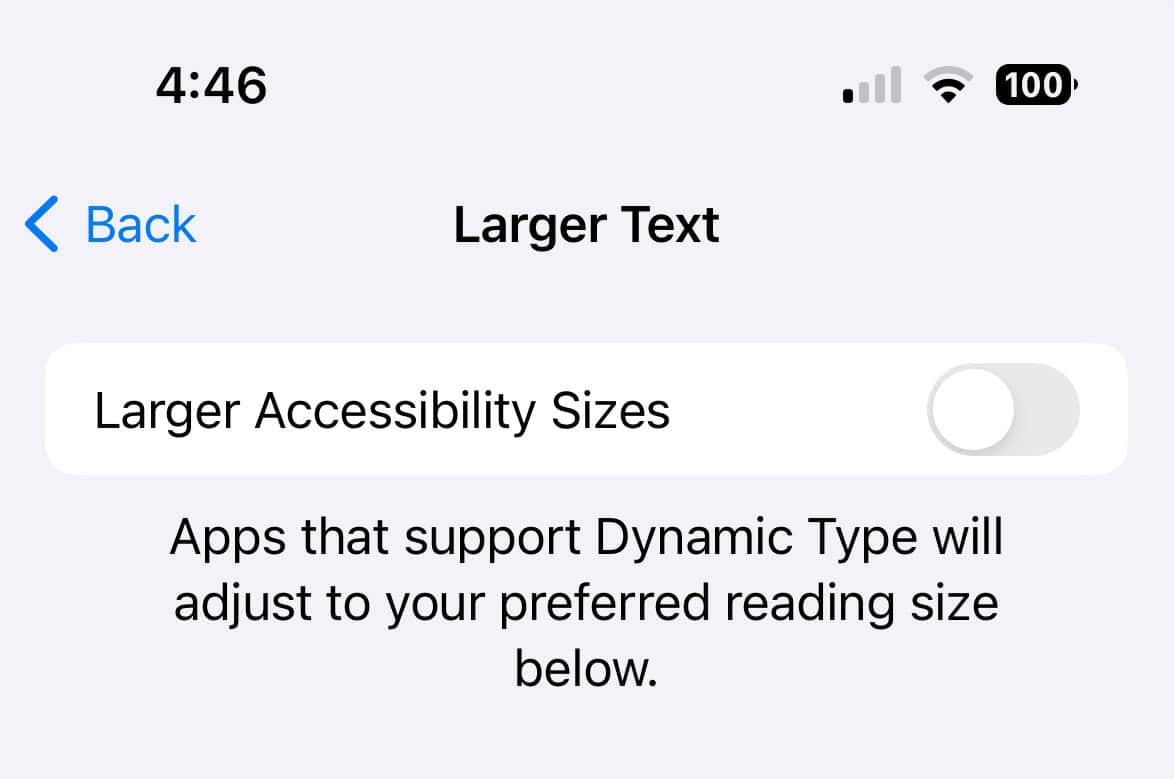
As much as we may not want to admit it to ourselves, as we get older, smaller text gets more difficult to read. The good news is that both smartphone operating systems make it easy to adjust font size. With the iPhone, you can go to Settings > Accessibility > Display & Text Size > Larger Text. Along with font size, you can also make the font bolder, increase the contrast, and modify a few other accessibility settings.
For Android smartphone users, the most general way to adjust text size is to go to Settings > Accessibility > Text & Display. From there, you should be able to increase text size, bolden the text, enable a high-contrast mode, and more. Please note that different Android smartphone settings will have different ways of getting to this menu option, so check with your manufacturer.
Display Zoom
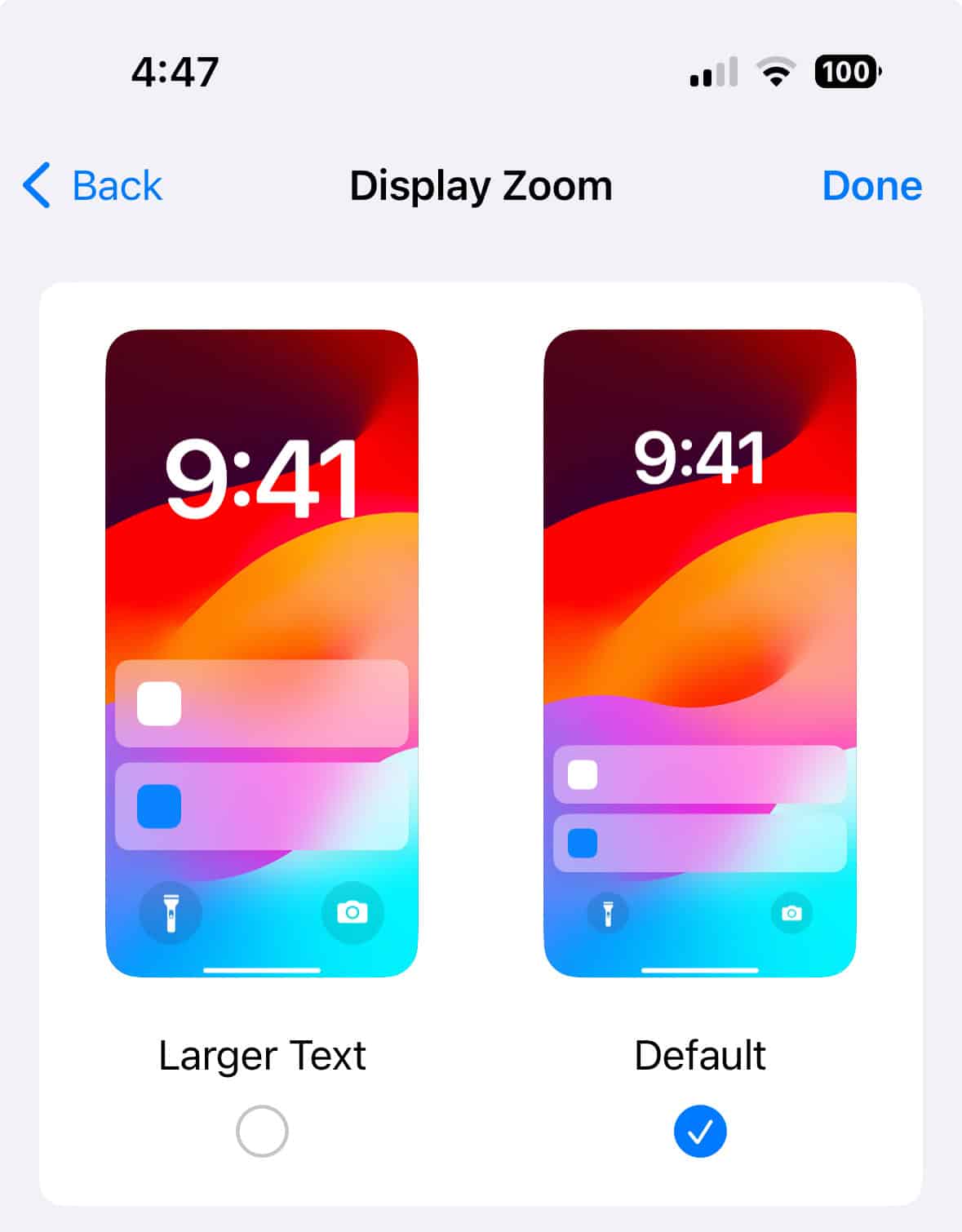
On the iPhone, there’s one more smartphone setting that you can adjust to help increase the overall size of everything. This means anything that appears on your home screen like a notification or alert will be larger. It's worth noting this increase is separate from text size as it applies to other apps and features as well.
To enable this feature go to Settings > Display & Brightness > Display Zoom > View > Zoomed and then tap on Set. One bonus of this feature change is that it also increases the size of text and iMessage bubbles' making them much more legible.
Enable Assistive Access
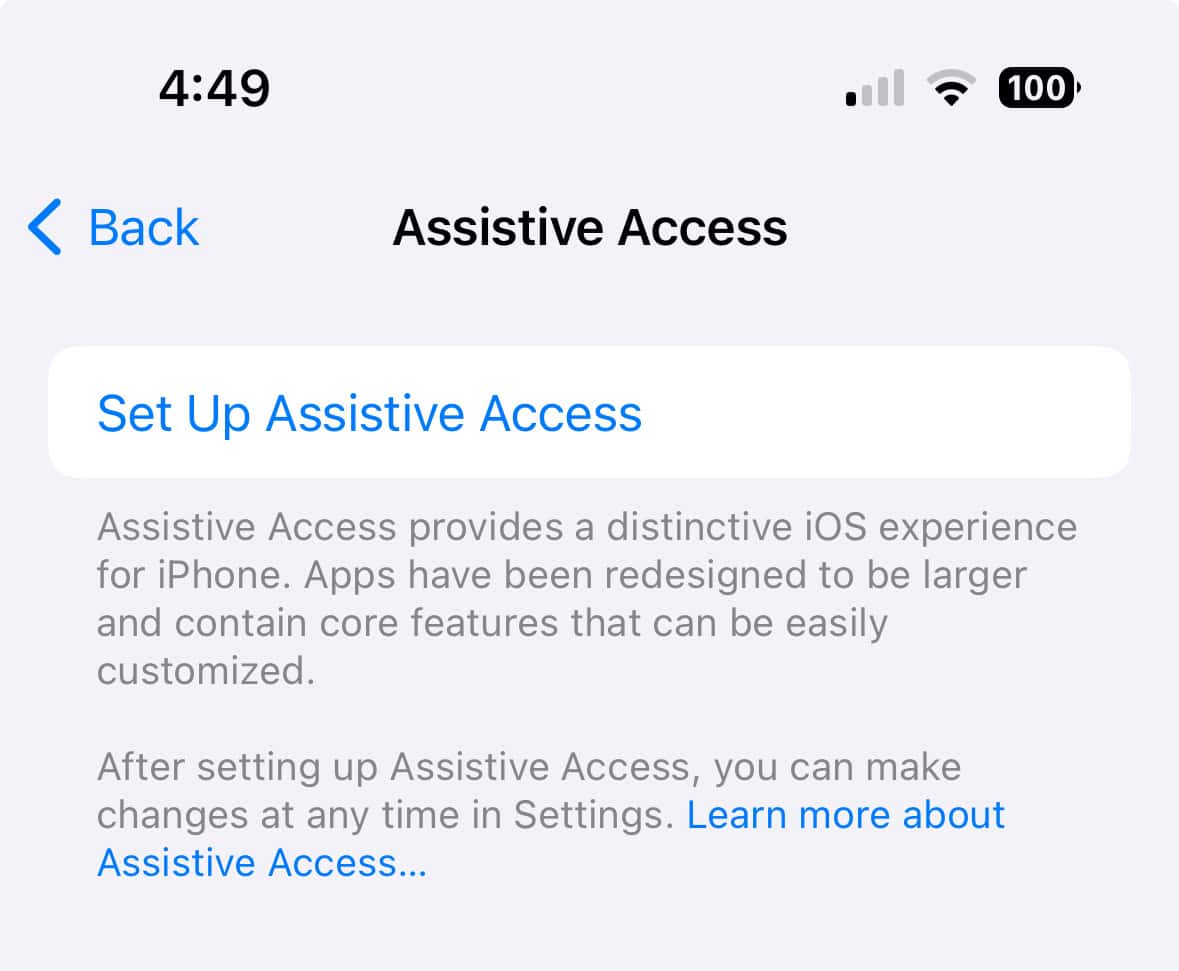
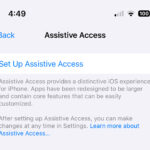
For iPhone owners out there who just want the basic features of their phone, Apple has a solution. Enter Assistive Access, which was first introduced with iOS 17. This feature provides a much more simplified home screen giving you just the bare minimum set of apps. You’ll find apps like Calls, Messages, Camera, Photos, Safari, and Music.
This feature even combines your phone and FaceTime apps into one. To enable this feature, you can go to Settings > Accessibility > Assistive Access. Once you confirm you want to enable this feature, your phone will restart and reflect the change.
Easy Mode
Similar to Apple's Assistive Access, Samsung smartphone owners have a very similar feature. Known as Easy Mode, this feature gives you a minimal home screen on Samsung’s Galaxy lineup of Android phones. To enable this feature, head to Settings > Display > Easy Mode and toggle the feature on and off.
Once active, font size will be increased as well as enabling a more simplified home screen layout. This feature will also prevent accidental button actions and add a higher contrast keyboard.
Favorite Contacts
If you’re a grandparent out there and you want to easily reach your family, set them up as a favorite contact. On the iPhone, this is very easy. Just open the Phone app, tap on Favorites at the bottom left, and then tap the “+” button at the top right. You can now add your favorite contacts to this list so you can quickly find and dial the numbers of the most important people in your life.
On a Samsung smartphone, try setting up the built-in speed dial feature. Just open your Phone app and tap on the Keypad tab. Press and hold onto any unassigned number and select a contact when prompted. Once assigned, you just have to long press a button on your dial pad to reach a specific contact.
Voice Dial
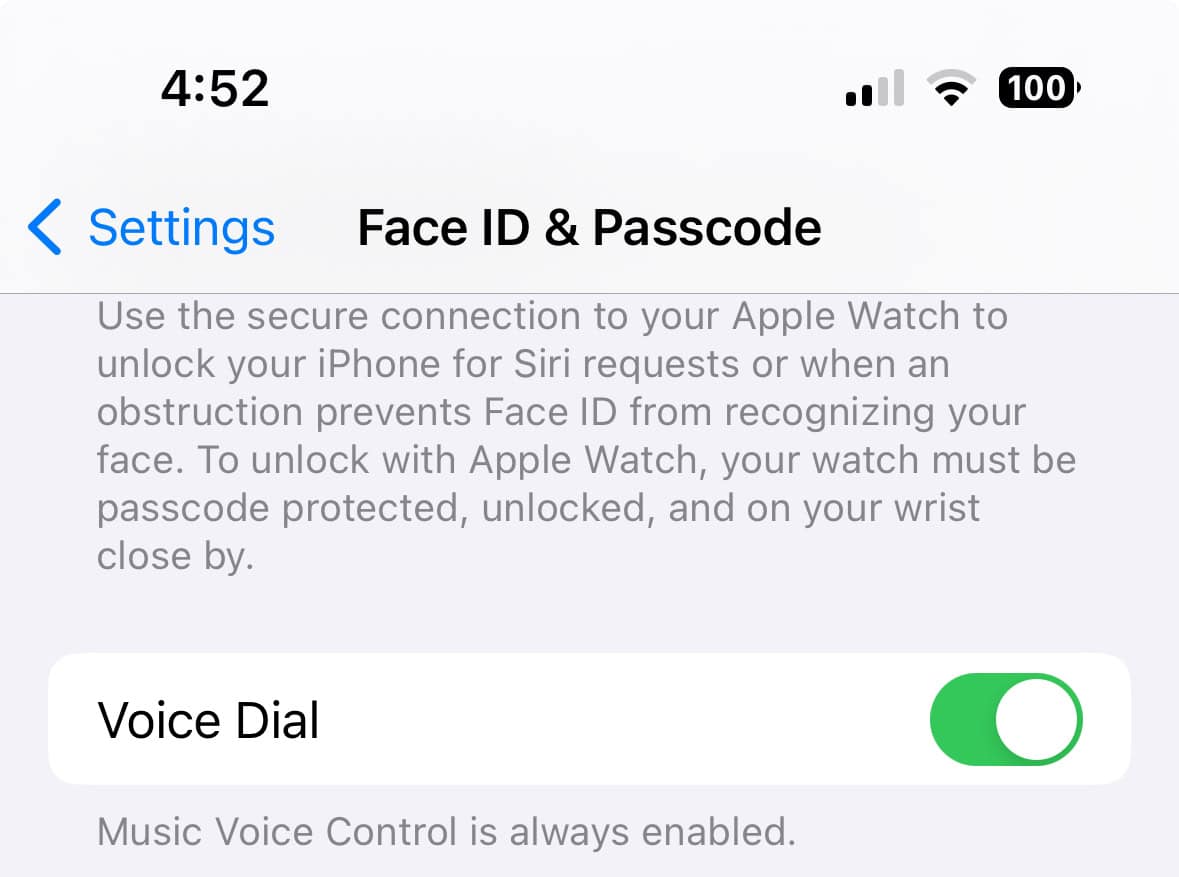
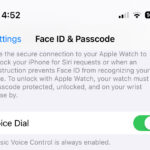
Should you want to go beyond setting up favorite contacts, you can activate voice dialing. On the iPhone, activating Siri’s voice dialing is super easy. Just go to Settings > Face ID & Passcode (Or Touch ID & Passcode > enter your current iPhone password > Activate Voice Dial. Now you just tell your phone “Siri, call [contact name]” and, voila, the phone will call.
Emergency Information
Last but not least, the most important tip everyone over 50 needs to know is adding emergency information. This could be something as simple as an emergency contact or your blood type. On Android go to Settings > About Phone > Emergency Information > Medical Information > Emergency Contacts. Add all of the right info and save the settings.
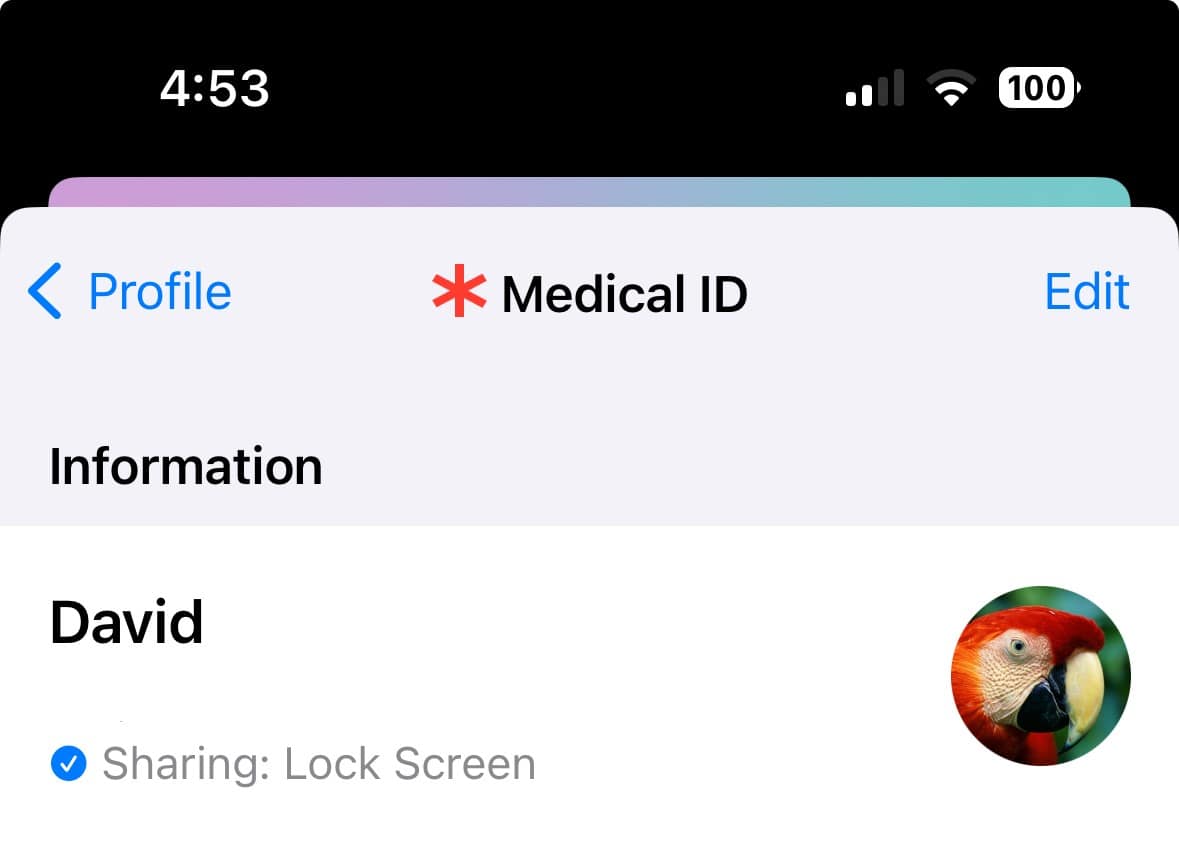
On the iPhone, open up your Health app, tap on your profile picture, and then choose Medical ID. You can now add any relevant medical information here including an emergency contact.
The image featured at the top of this post is ©NYC Russ/Shutterstock.com